Free OnlyFans Menu Template: Editable Canva Guide
A free OnlyFans menu template is one of the fastest ways to give your page a professional look without hiring a designer. In this guide, you'll find a ready-to-edit layout, a checklist of what to include, and practical tips to make your menu stand out on Twitter, Reddit, and Instagram while staying within platform rules.
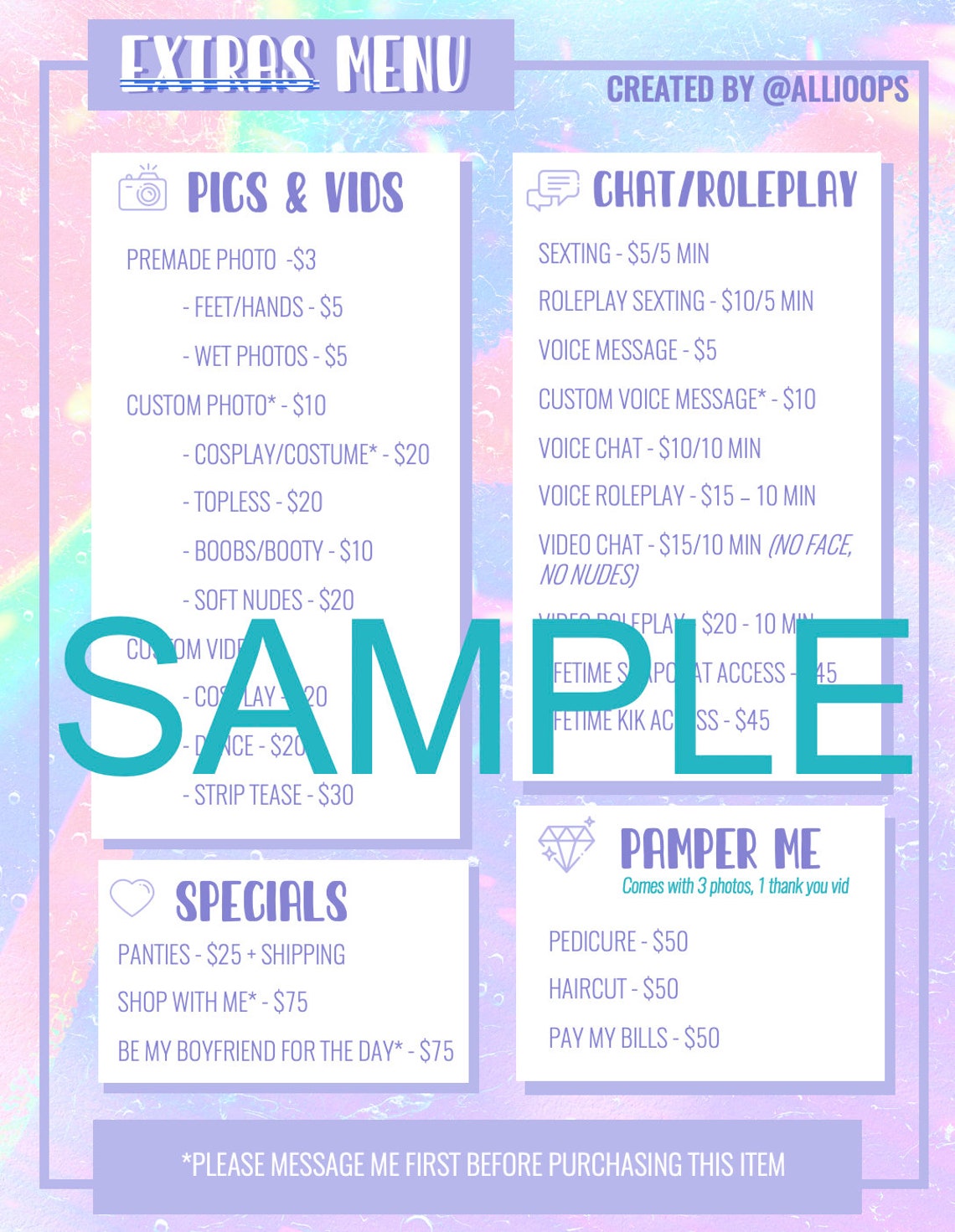
What Is an OnlyFans Menu and Why Use a Template?
An OnlyFans menu is a single graphic, often shared on social media, that lists what subscribers get when they join your page. It usually covers content types, pricing tiers, custom services, and the "extras" you offer, like sexting, voice notes, or personalized videos.
Templates save you hours of design work. Instead of fighting with blank canvases, you start with a layout that is already balanced, readable, and on-brand. You simply swap in your colors, fonts, photos, and prices. Most creators finish in under ten minutes.
Who benefits most from using a template
- New creators launching their first page
- Established creators who rebrand often
- Agencies managing multiple creators
- Anyone without Photoshop or design experience
What to Include in Your OnlyFans Menu
Before you download anything, sketch out the sections you want to feature. A cluttered menu confuses subscribers and lowers conversions. Aim for five to seven clear blocks of information.
Essential sections
- Subscription price: Your base monthly fee, plus any discounts for long-term commitments.
- Content types: Photosets, videos, cosplay, fitness, ASMR, couples content, and so on.
- PPV or premium tiers: Special bundles or themed drops that cost extra.
- Custom services: Ratings for personalized videos, sexting, voice messages, and live sessions.
- Turnaround times: When fans can expect a reply or a custom request.
- Boundaries and rules: What you will and won't do. This protects you legally and sets expectations.
- Call to action: Your handle, link, and a friendly nudge to subscribe.
Optional sections worth considering
- Couples or collab content partners
- Loyalty rewards or contests
- Wishlist or tip-based goals
- Behind-the-scenes or "day in the life" perks
How to Edit a Free OnlyFans Menu Template in Canva
Canva is the easiest tool for most creators because it runs in a browser, has a generous free tier, and offers drag-and-drop editing. Here's a step-by-step workflow that takes roughly ten minutes.
Step 1: Open the template
Click the template link, then choose "Use template." Canva will save a copy to your account so the original stays untouched.
Step 2: Update the text
Click any text box and replace the placeholder copy with your offer details. Keep language short, action-oriented, and confident. Avoid generic phrases like "exclusive content." Be specific: "Weekly 20-minute Q&A" beats "special access" every time.
Step 3: Apply your brand colors
Open the "Brand Kit" panel (free for one brand on Canva) or manually select two or three colors from your profile photo. Consistent colors help fans recognize your posts in a busy feed.
Step 4: Choose readable fonts
Stick to one display font for headings and one clean sans-serif for body text. Make sure the body text is at least 14 pt so it stays legible on mobile screens, where most of your audience will view it.
Step 5: Add your photo or logo
Replace the placeholder image with a polished headshot or branded logo. Use a high-resolution PNG so the edges stay sharp.
Step 6: Export and share
Download as PNG for the sharpest result, or as JPG if you need a smaller file for Reddit. Most menus end up between 1 and 3 MB.
Design Tips That Actually Convert
A pretty menu is not enough. The goal is to turn curious scrollers into paying subscribers. These design and copywriting choices consistently boost click-through rates.
Lead with value, not features
Instead of "Daily photos," try "A new themed photoset every morning at 9 AM." The first sounds like a task; the second feels like a benefit fans can plan around.
Use a clear visual hierarchy
Your price should be the largest element, followed by your top three offerings. Subscribers scan, so make the important numbers impossible to miss.
Leave breathing room
Resist the urge to fill every corner. White space (or "negative space") guides the eye and makes the design feel premium.
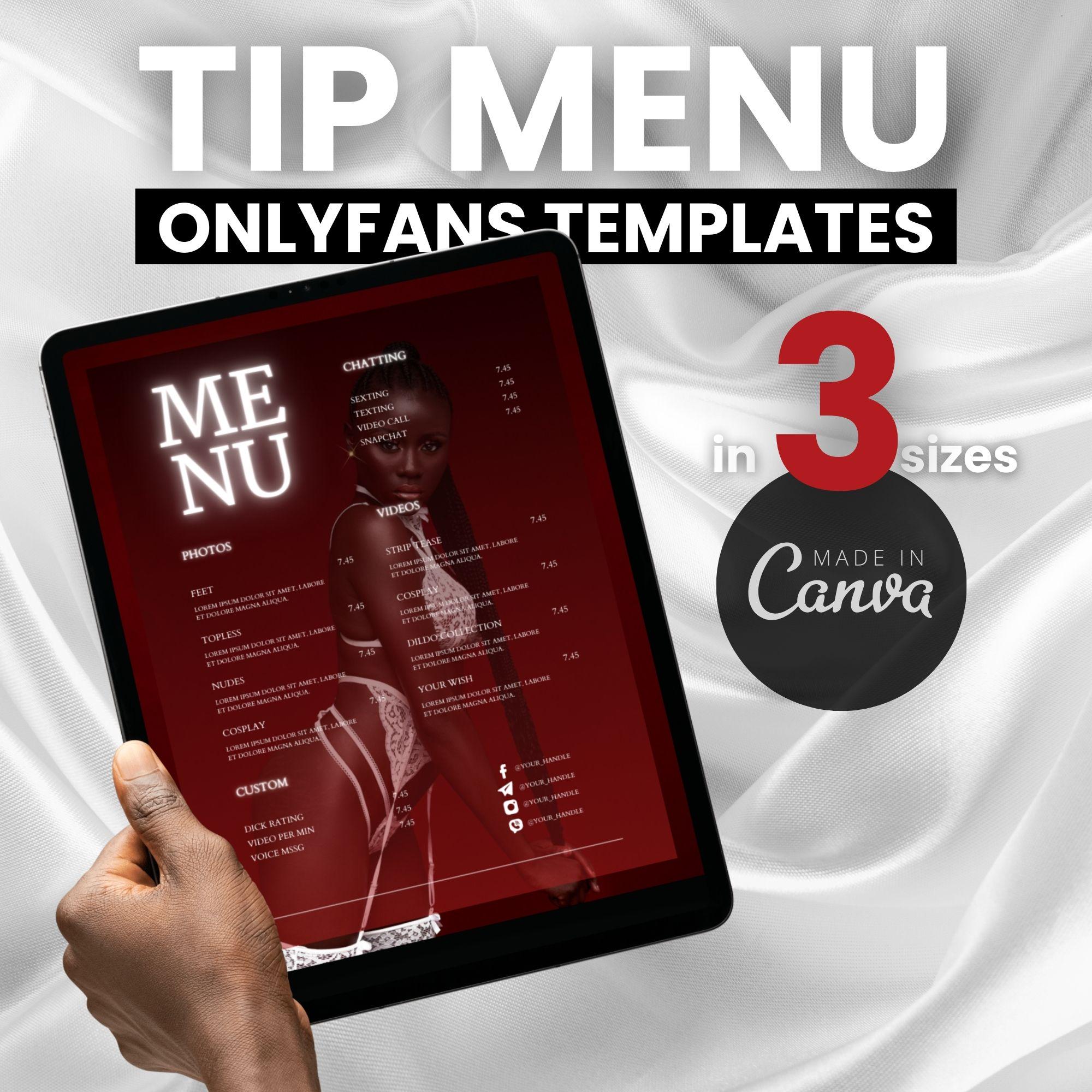
Match your feed aesthetic
If your Instagram is pastel and minimal, a neon menu with bold patterns will feel jarring. Consistency builds trust over time.
Version it
Create at least two versions: a square (1080x1080) for Instagram and a vertical (1080x1920) for TikTok and stories. Both sizes are easy to duplicate inside Canva.
Common Mistakes to Avoid
Even great templates can be ruined by small errors. Watch out for these issues before you publish.
- Typos in pricing: A missing zero can cost you revenue or scare subscribers away. Triple-check every number.
- Low-contrast text: Light gray on white looks elegant in theory but disappears on a phone in bright sunlight.
- Outdated offers: If your menu says "free sexting" but you have paused that service, you will get refund requests and angry DMs.
- Platform violations: Twitter, Instagram, and TikTok each have rules around adult-adjacent content. Keep menu images suggestive but not explicit; link out for the rest.
- Too much information: If subscribers need to read a paragraph per service, they will scroll past. Bullet points only.
Where to Share Your Menu for Maximum Reach
Where you post matters as much as how it looks. Each platform has its own audience and posting style.
Twitter / X
Pin the menu to your profile and repost weekly with fresh hooks. Use relevant hashtags sparingly and avoid spam-tag behavior.
Follow each subreddit's self-promotion rules. Many require verification or specific posting days. A polished menu earns moderator trust.
Instagram and Threads
Stories and highlights are ideal because they sit at the top of your profile. Update them whenever your offer changes.
TikTok
Convert your static menu into a 7-second reveal video: blur the image, tease a few lines, then show the full menu at the end with a call to action in the caption.
Legal and Privacy Considerations
Creators sometimes overlook the legal side of menu design. Keep these basics in mind to protect yourself.
- Age verification: Only advertise where the audience is known to be 18+, and never imply otherwise.
- 2257 compliance: If your menu references custom content involving real people, keep records of model releases and IDs.
- Tax obligations: Earnings from OnlyFans are taxable income in most countries. Track every payout.
- Watermarks: Add a subtle watermark with your handle to discourage repost theft on free sites.
Frequently Asked Questions
Is it really free to use a Canva template?
Yes. Canva's free plan includes thousands of templates. Some premium elements (stock photos, certain fonts) cost extra, but a basic menu can be built entirely on the free tier.
Can I sell the template I create?
If you start from a free Canva template, the design license is tied to your own use. Selling the modified file may violate Canva's terms. Check their license page before listing anything for sale.
How often should I update my menu?
Refresh it whenever your pricing, services, or content focus changes. A good rule of thumb is at least once per quarter, or whenever you launch a new promo.
What's the best size for an OnlyFans menu?
A 1080x1080 square works for most feeds, while 1080x1920 is ideal for stories and TikTok. Create both versions so you never resize on the fly.
Final Checklist Before You Post
- All prices and links are correct.
- Fonts are readable on a phone screen.
- Colors match your overall brand.
- Boundaries and rules are clearly stated.
- The file is exported in the right size for each platform.
- A subtle watermark is in place.
That is everything you need to launch a professional menu today. Grab the free OnlyFans menu template, follow the Canva steps above, and you will have a polished, conversion-ready graphic before your coffee gets cold.